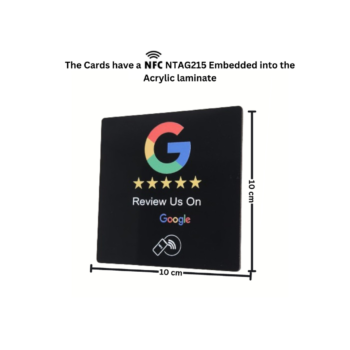
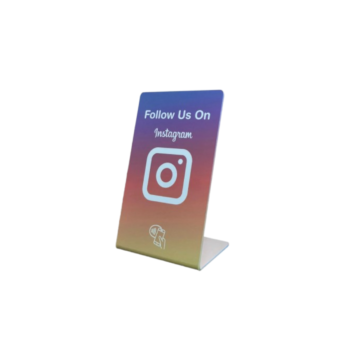
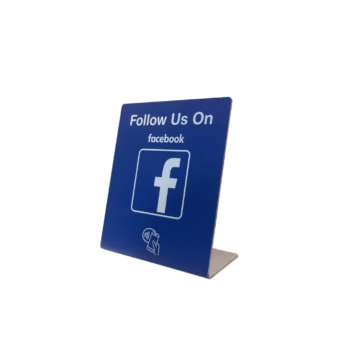
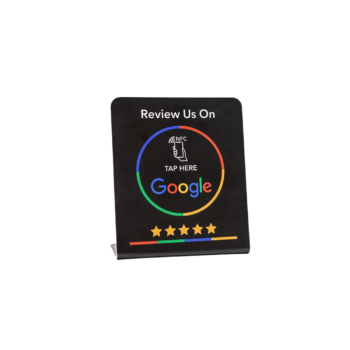

Tap your Unihub NFC card with any NFC-enabled phone to open this page.
If it doesn’t work automatically, follow the steps below.
Video Tutorial
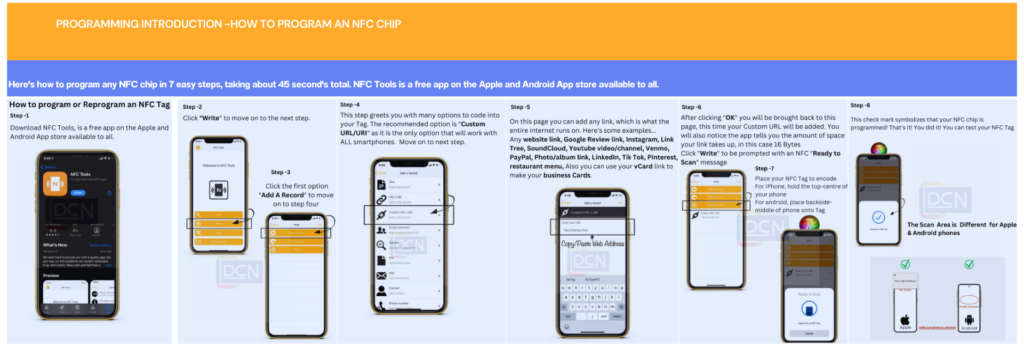
Step-by-Step Instructions
Step 1: Install a Free App
Step 2: Write the Setup Link to Your Card
- Open the app.
- Choose Write → Add a record → Custom URL/URI.
- Enter your link Example :
https://unihubinternational.com - Tap Write → hold your phone against the NFC card until it confirms success.
Step 3: Test It
- Tap your card to your phone again.
- Your phone should open this page automatically.
- NOTE: Smartphones only understand one single link, adding multiple items here will not work.
Troubleshooting
Make sure NFC is turned ON in your phone settings.
- Some older iPhones can read tags but not write them.
- If writing fails, try again or use a different phone.
- Still stuck? Contact us at
unihubinternationalllc@gmail.com
or call/WhatsApp us at
+971 50 669 6442. - Note: After reviewing the procedures below for encoding NFC tags, you can format your existing NFC tags using the same software. Go to “Other” → “Format Memory” to update the tags with your custom URL or URI. You can link them to a website, Google Business review, Instagram, WhatsApp, YouTube video/channel, Venmo, PayPal, photo album, LinkedIn, TikTok, Pinterest, restaurant menu, or any other custom data you wish to include
Explore other UniHub products
-
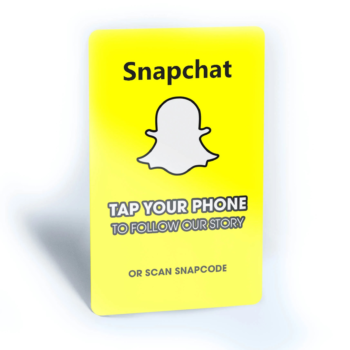
Snapchat NFC Card
Original price was: د.إ80.00.د.إ50.00Current price is: د.إ50.00. Buy via WhatsApp -
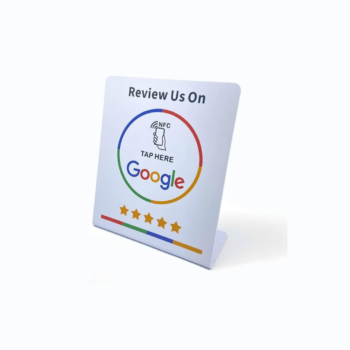
White NFC Google Review Stand
Original price was: د.إ120.00.د.إ90.00Current price is: د.إ90.00. Buy via WhatsApp -
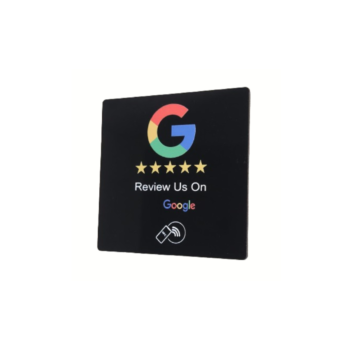
Black NFC Google Review Stand
Original price was: د.إ120.00.د.إ90.00Current price is: د.إ90.00. Buy via WhatsApp -
NFC Instagram Smart Stand – Instant Profile Access & Engagement!
Original price was: د.إ120.00.د.إ89.00Current price is: د.إ89.00. Buy via WhatsApp -
NFC Facebook Smart Stand – Instant Connection & Engagement!
Original price was: د.إ120.00.د.إ90.00Current price is: د.إ90.00. Buy via WhatsApp -
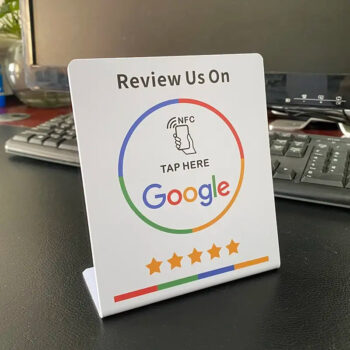
NFC Google Review Stand – Get More Reviews Instantly!
Original price was: د.إ120.00.د.إ90.00Current price is: د.إ90.00. Buy via WhatsApp -
NFC Facebook Plaque – Instant Profile Access & Engagement!
Original price was: د.إ120.00.د.إ75.00Current price is: د.إ75.00. Buy via WhatsApp -
NFC Instagram Plaque – Instant Profile Access & Engagement!
Original price was: د.إ120.00.د.إ75.00Current price is: د.إ75.00. Buy via WhatsApp -
NFC TikTok Card – Instantly Connect & Grow Your Audience!
Original price was: د.إ90.00.د.إ49.00Current price is: د.إ49.00. Buy via WhatsApp -
Black Wi-Fi NFC Acrylic Sticking Fob – Instant Wi-Fi Access with One Tap
Original price was: د.إ130.00.د.إ90.00Current price is: د.إ90.00. Buy via WhatsApp -
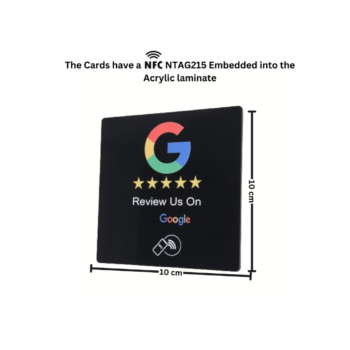
Square NFC Google Review Acrylic Sticking Card – Black
Original price was: د.إ110.00.د.إ75.00Current price is: د.إ75.00. Buy via WhatsApp -
Square NFC Google Review Acrylic Sticking Fob– White
Original price was: د.إ110.00.د.إ75.00Current price is: د.إ75.00. Buy via WhatsApp -
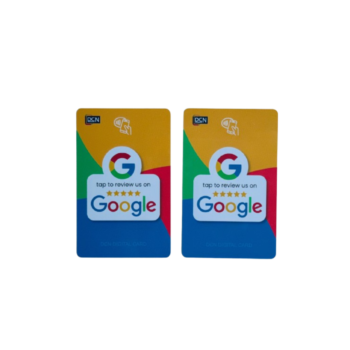
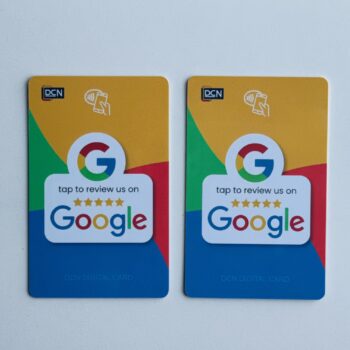
NFC Google Review Card – 2PC Combo!
Original price was: د.إ180.00.د.إ90.00Current price is: د.إ90.00. Buy via WhatsApp -
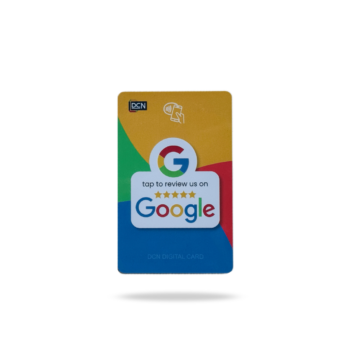
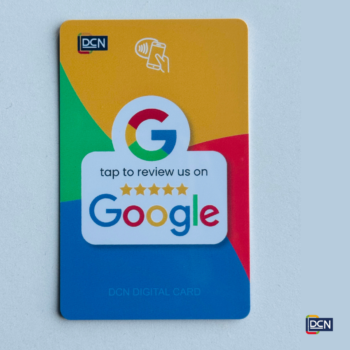
NFC Google Review Card
Original price was: د.إ90.00.د.إ50.00Current price is: د.إ50.00. Buy via WhatsApp -
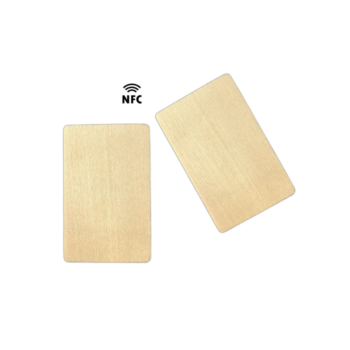
Wooden Google Review Card – 2PC Combo!
Original price was: د.إ150.00.د.إ100.00Current price is: د.إ100.00. Buy via WhatsApp -
NFC Google Review Sticking Fob – White Color
Original price was: د.إ120.00.د.إ85.00Current price is: د.إ85.00. Buy via WhatsApp -
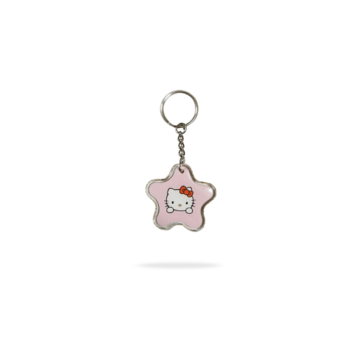
NFC Keychain – 3PC Combo!
Original price was: د.إ99.00.د.إ50.00Current price is: د.إ50.00. Buy via WhatsApp -
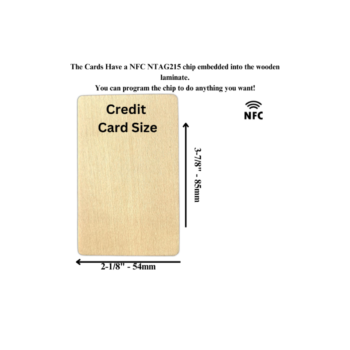
NFC Wooden Card – 2PC Customizable & Programmable Combo! 🌳
Original price was: د.إ75.00.د.إ39.00Current price is: د.إ39.00. Buy via WhatsApp -
NFC Blank PVC Card – 2PC Customizable & Programmable Combo!
Original price was: د.إ70.00.د.إ35.00Current price is: د.إ35.00. Buy via WhatsApp -
NFC Google Review Acrylic Sticking Fob
Original price was: د.إ120.00.د.إ75.00Current price is: د.إ75.00. Buy via WhatsApp -
NFC Instagram Acrylic Sticking Fob
Original price was: د.إ120.00.د.إ85.00Current price is: د.إ85.00. Buy via WhatsApp